
How to Link Categories to Pages in WordPress?


Linking categories and pages is one of the most common ways of making your site and content more navigable for ever-so-impatient web surfers. Sit back, relax, and enjoy as we dive into this, and three other key aspects around WordPress site management.
The process of linking categories to pages in WordPress involves the creation of categories, category menus, and integration of the latter into the menu. These categories can later be displayed on any future pages.
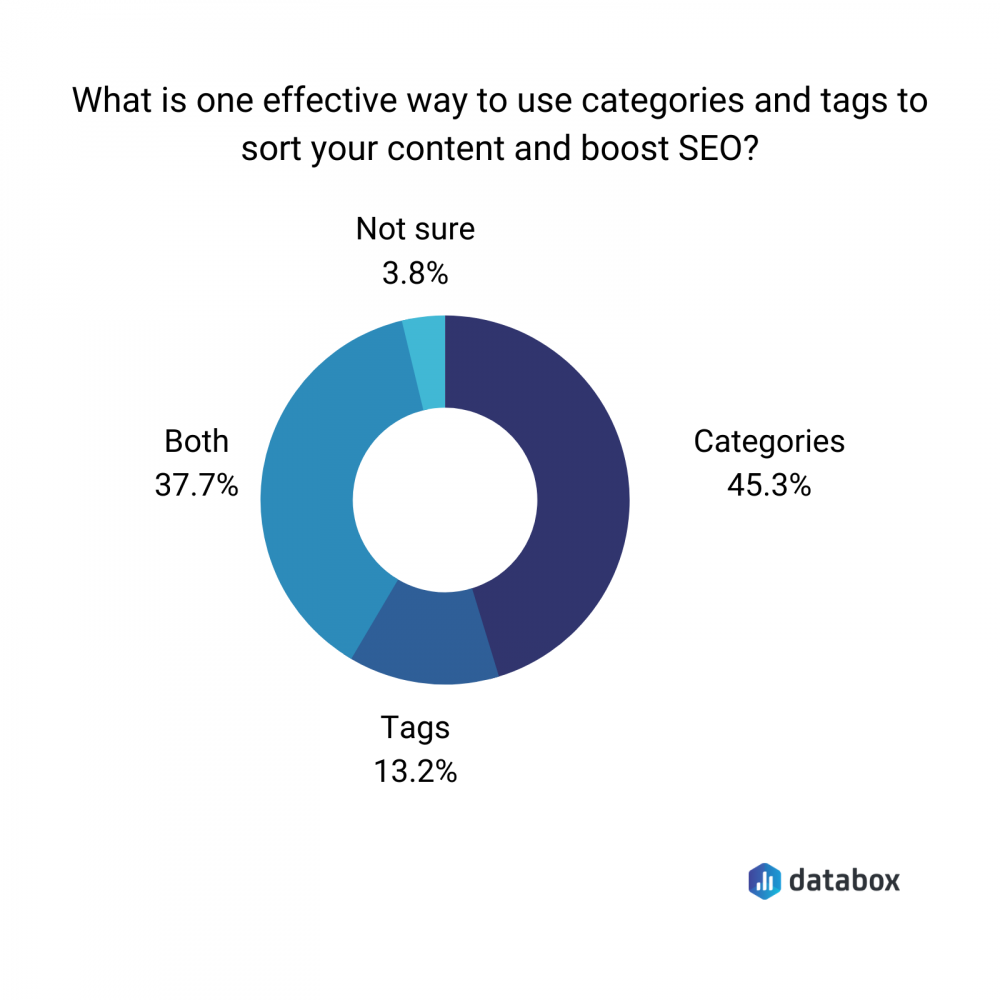
It is important to distinguish between tags and categories. As we have already mentioned, the primary purpose of categories is to classify various posts under an umbrella topic. On the other hand, tags organize posts based on the specifications of the content they contain. However, according to a Databox survey, most marketing experts, 45.3%, think categories are effective for organizing content and boosting SEO.
The following article briefly explores the processes of linking, displaying, and managing categories. Let’s get started.
How to link categories to pages in WordPress
To link categories to pages in WordPress, you must first categorize your posts according to your preferences before creating a custom menu. Custom menus are created by accessing the WordPress dashboard, clicking “Appearance”, and selecting “Menus”.
Next, you have to add the category pages to the menu. Open your site’s customizer and click on “My Sites”, “Design”, then “Customize”. Next, click on “Menus” to open the menu editor. Hit “Add items” and select “Categories” before clicking the plus icon next to the desired category(ies). Once you’ve selected your categories, hit “Publish” to save.
Display category on the page – WordPress
With attention spans shorter than they have ever been, the ability to make navigation easier for your audience is worth your weight in gold. An easy way to achieve this is to display content categories on specific webpages.
If you run a sports blog, for example, it would be a good idea to include a “Soccer” primary menu. This menu would then form a dropdown list of categories (let’s say some popular teams, in this instance) so your audience could have quick access to specific topics. That way, if someone selects “Manchester United” from the list, they can quickly access a page with links to posts about that particular team.
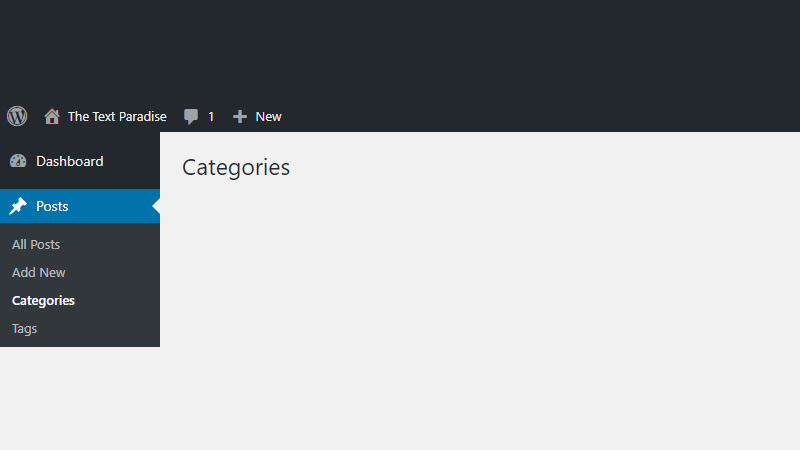
There are two approaches to displaying categories on a page. The first way is to display all of the posts within one category. As soon as a category is created, an automatically updated category page (with pages under that category) is also created. This category page is accessed by selecting “Posts” on the WordPress dashboard. Next, click on “Categories” to see a list of all of your created categories.
The next step is to simply hover your mouse over the items in the list to see a set of options for each. Select “View” on a particular category to display its direct category page URL in your browser address bar. Copy the URL before going to “Appearance”, then “Menus”. Create or select a menu that you will add the direct URL to and click on “Custom Links”.
In Custom Links, paste the direct URL and label the link text before clicking “Add to Menu”.
The second approach to displaying categories on a page is to create a page with posts from several categories. The first step in this process is to access your WordPress dashboard, click “Posts”, and select “Categories”. The desired categories must be created beforehand.
The second step is to hover the mouse over the categories in the menu list. When you do this, please take a look at the long link that pops up at the bottom of your browser. Specifically, note the ID value within the URL. Each category in the list will have a unique ID value, which you must note down.
The third step is to create a new page that will feature brief descriptions of your categories. The fourth is to access “Page Attributes” and choose the “Blog” template type.
Next, you will have to go to the “Screen Options” tab to enable custom fields. Ensure the “Custom Fields” checkbox is ticked. A “Custom Fields” box will then materialize at the bottom of the page editor window. In this window, click on “Enter new” and enter “query_args” under the name field. The value field must be filled with the category ID numbers noted earlier, with these separated with commas. Save and publish.
After the category page has been published, revisit the dashboard and head to “Appearance” then “Menus”. Like with the first approach, create or select the menu to which the category page will be added. Click “Pages”, then “Most Recent” and the new category page will be there. Select the checkbox next to the page and hit “Add to Menu”.
How to add categories to pages in WordPress
WordPress, by default, only allows categories to be added to blog posts, not pages. If you wish to add categories to pages, you will have to find a way to circumvent this restriction. The good thing is that there are a few ways to do this. The first, and most popular way, is with plugins.
Plugins, essentially, are little pieces of software that contain functions that can be added to a WordPress blog or webpage. At the time of writing, there are several thousands of plugins dedicated to different things. They are an easy way for you to enhance your website or blog’s features and functionality without the ability to write (or even understand) code!
For this context, find a plugin that can support categories for both webpages and blog posts. I recommend the Create and Assign Categories for Pages plugin by Sandeep Singh. This plugin covers all the bases, from creating and displaying categories, to hiding pages belonging to certain categories.
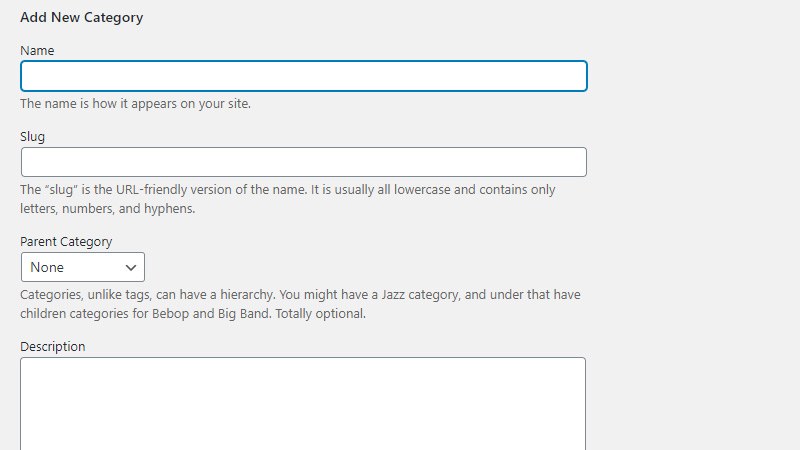
To set up the plugin, simply add the plugin from the WordPress dashboard. Next, go to the “Plugins” menu and activate it. After activation, select “Pages” and go to “Categories” (which will be visible only if activation was successful). You will then be able to create new categories here, just like you would with blog posts.
If all of the above steps are followed correctly, you will be able to access categorized pages with the query post/wp_query.
WordPress add a category to the page without a plugin
As we have already discussed, there are two main ways of adding categories to pages. We’ve touched on the plugin method, so let us now deal with the plugin-free approach.
Of course, without plugins, we will have to (briefly) get our hands dirty and do some manual coding. This will be done in the functions.php theme file in the following manner.
Function add categories_to_pages() {
Register_taxonomy_for_object_type(‘category’, ‘page’ );
}
add_action( ‘init’, ‘add_categories_to_pages’);