Turtle Beach Headset Not Working: Here’s How To Fix It

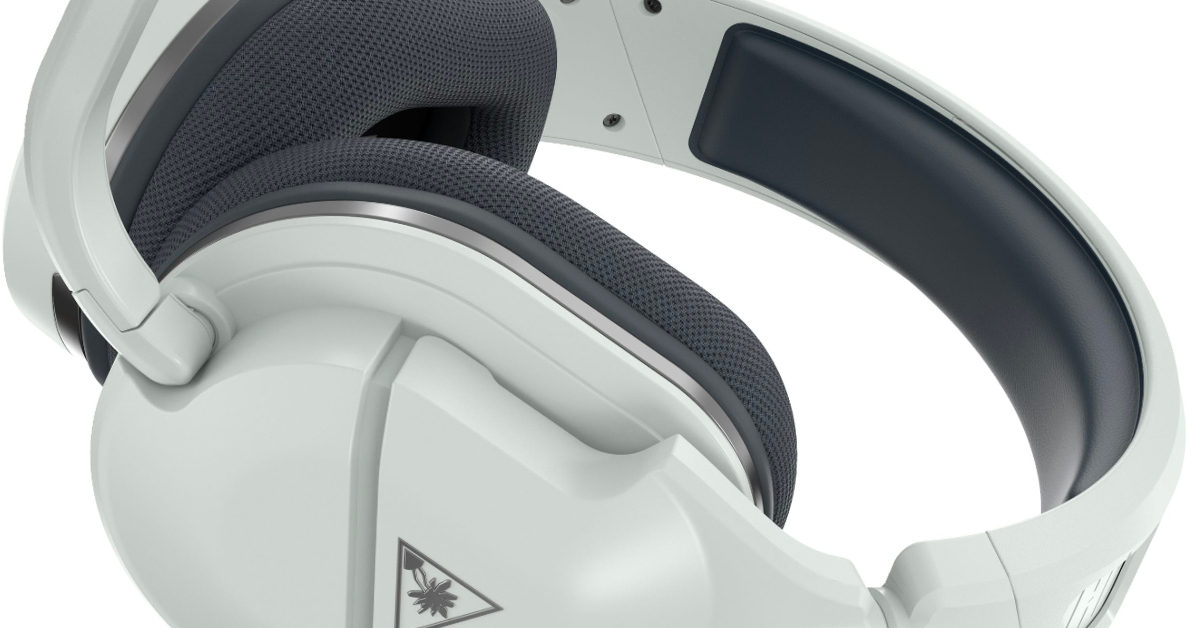
In the gaming world, Turtle Beach headsets provide one of the best headsets for gamers to communicate and perform other in-game activities that require a headset. The headset has a stylish design that makes it attractive, also possessing attractive features with top-notch sound effects, and different models of the headset specifically created with their own specifications. Although the headset is a great headset and works perfectly well for gamers, it may also come with its own faults with users requesting to know if it’s possible to be able to fix the headset whenever it stops working.
There are some troubleshooting steps you can follow to fix the headset whenever it experiences some problems that may cause it to stop working. If the headset isn’t damaged but just suddenly stops working, you can apply some troubleshooting steps to help fix the headset and get it back on track.
If the headset isn’t completely damaged but just suddenly stops working, there are steps you can follow in this article to help you troubleshoot the problem and get the headset working. In this piece, I’ll share with you the steps to help you fix your Turtle Beach headset whenever it has an issue.
Why Is Turtle Beach Headset Not Working
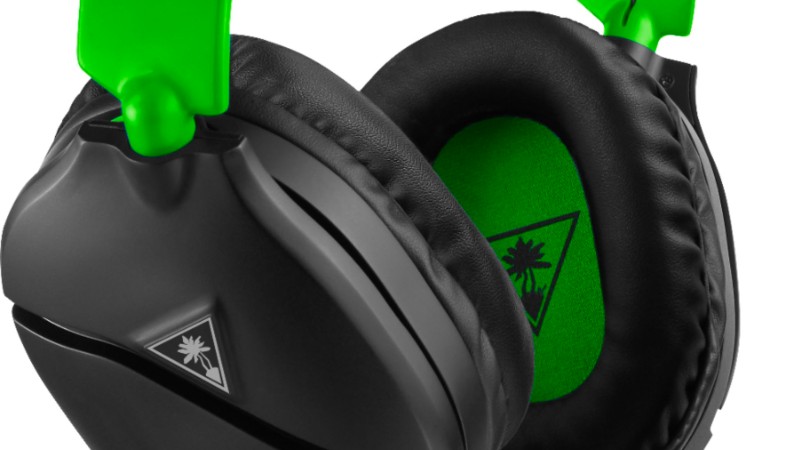
There are various reasons why your Turtle Beach headset may not be working especially when you’re playing games, however, the most prominent issue amongst gamers who use this headset is when You notice that it stops providing sounds, and it doesn’t allow you to use the microphone while playing games.
When this problem occurs, you won’t be able to communicate with your co-players and the gaming performance also degrades when you can’t hear the audio. This is why there are various troubleshooting steps to help you fix this issue whenever you notice it when using the headset while playing games on your console or PC.
The following are various reasons why your Turtle Beach headset isn’t working:
Turtle Beach Headset Disabled On PC
If your Turtle Beach headset is disabled on your PC, you won’t be able to use the headset as you would and you may think it’s now faulty. When your headset is disabled, you won’t be able to use it as the audio and microphone functions won’t work since it’s been disabled on your windows PC. To get it to work properly back, you’ll need to go to your PC’s settings, where the audio settings are found to enable the headset back and make it work properly.
Outdated Audio Drivers
When your audio drivers are outdated, your headset’s connection to your PC may fluctuate, causing it to be intermittent. Sometimes, you may wonder why you’re unable to hear what other gamers are saying, neither will they be able to hear you, however, this problem may be due to your audio driver packs being outdated. To confirm this, you have to verify that your headset is enabled and also test it with other devices to see if it works well. If it does, then you may need to update your computer’s driver pack, especially the audio drivers.
Loose Connection
If your Turtle Beach headset is loosely connected to your computer or gaming device, then it will not work at all or the connection may be intermittent. While using the headset, if you do not make sure that the headset is connected properly, it won’t be able to connect with your PC and you won’t be able to use the headset’s audio component or the microphone. Make sure to double-check that the headset is connected properly to your computer so the connection won’t be loose.
Damaged Headset Cables
One other reason why your headset may not be working is that your headset cables are possibly damaged. To know if your headset’s cables are damaged, the connection will be intermittent and you’ll be unable to listen via the headset’s audio component nor will you be able to use the microphone to communicate while gaming. Once your headset’s cable is damaged, you may not be able to fix it if you’re not a professional technician and if it is damaged badly, you’ll need to get a new Turtle Beach headset to be able to enjoy communicating while gaming.
No Permission To Access The Headset On Your Computer
If you don’t have the right permission to access the headset on your computer, you won’t be able to use your Turtle Beach headset with your PC. You’ll need to allow the Turtle Beach headset to be one of your audio components by allowing the headset the access to be one of your PC’s audio components by accepting the agreements while installing the headset’s driver and providing the permission to be an audio component on your computer. This way you’ll be able to access the headset on your computer.
How To Fix “Turtle Beach Headset Not Working”
The following are the ways you can fix this issue:
Enable Your Headset
The very first troubleshooting step you should take is to enable check if your headset is enabled on your PC. The following are the steps to check this:
- Navigate to the Taskbar, then right-click on the volume icon and click on sounds.
- Click on the recording tab, then right-click on your headset. Once you’ve done this, click on “Enable”.
- You will see a green check mark that serves as an indication that the headset is enabled on your Windows PC.
- Click on the apply and OK buttons to proceed and save the changes.
Set Your Turtle Beach As An Input Device
If your Turtle Beach headset isn’t configured as an input device on your Windows PC, it may not work. Hence, change the audio settings and set your headset as an input device via the following steps:
- Navigate to the Taskbar, then right-click on the volume icon and click on “Open Sound Settings”.
- In the input section, select the Turtle Beach headset from the drop-down menu.
- Click on the app volume and device preferences.
- In this step, set the volume. Once you’re done setting the volume, change the input and output device for various applications.
Now make sure to verify that the headset is working perfectly on your computer.
Update Your Sound Drivers
Have you followed the above steps and you’re still facing the Turtle Beach headset not working issue? Then make sure your sound drivers are updated on your Windows PC. This is because older drivers may not support the audio device to work properly. The following are the steps to update your sound drivers:
- Press Windows + R, then type devmgmt.Msc and then click “OK”.
- Expand audio inputs and outputs, then right-click on the microphone (Realtek High definition audio), and then click on update driver.
- Click on “Search automatically for the updated driver software”.
- Follow the on-screen instructions to complete the update process.
After this process, restart your computer and check if the device works.
Disable And Re-enable Your Headset Mic
If none of the above methods were able to fix the problem, try to disable and re-enable your headset mic. The following are the steps to achieve this:
- Press Windows + X on your keyboard and then select device manager from the menu list.
- Double-click on the audio inputs and outputs section, then right-click on the headset, ms then click “disable device”.
- After this, right-click again on the headset, then click enable device.
After you’ve re-enabled your device, verify if the Turtle Beach headset now works properly.

![Xiaomi Inadvertently Confirms HyperOS 4 Development and Strategy Shift[1]](https://techcrawlr.com/wp-content/uploads/2025/12/xiaomi-768x432.jpg)