How To Update An Old Ipad To The Latest Version? Simple Guide


Apple products are one of the most consumed products in the tech industry due to the company’s unique form of branding, making their products stand out from their peers. With the continuous release of new versions of their products and their operating systems, every old apple product may need to upgrade to the newer operating system; this includes the iPhone, iPad, MacBook, etc. However, if you’re using an old generation of the iPad, is it possible to update its operating system to the latest version?
Although this is dependent on the version of your iPad because Apple leaves very old versions of their products behind, you can update your iPad to the latest version if your device isn’t one of the oldest versions left behind. This is because the hardware of those models cannot run the latest OS.
Updating your iPad’s operating system to a newer version isn’t a complicated step to go through, however, if you don’t want to lose your files during the update process then you should follow the steps below to the latter. In this article, I’ll share with you the steps to update your iPad’s operating system (iOS) to a newer version.
Can You Update An Old iPad To The Latest Version?
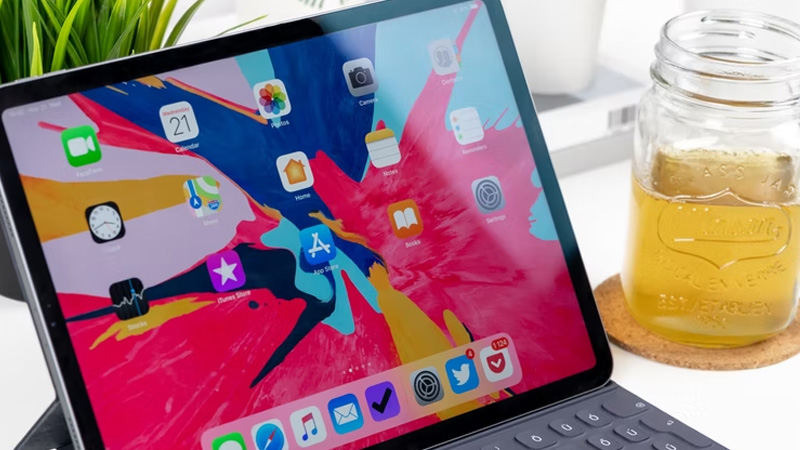
Yes, you can update your old iPad’s operating system to a newer version if Apple hasn’t left that version of your iPad behind.
If you’re using a very older version of the iPad series, you may not be able to update your operating system to a newer version because Apple leaves put these models as they do not have the hardware to run the new versions of the operating system. This is why most older iPad models aren’t able to update to a newer version, leaving the user in awe as they’d like to have a newer version of the iOS on their iPad.
There are a lot of models of the iPad because almost every year, Apple rolls out newer models to make their customers experience newer hardware and software technologies, with upgrades on their hardware parts and their software parts (this software part is where the version of the operating system is).
Once there’s a new version of the operating system, apple always alerts users about the update in their settings so they can easily update to a newer model. If your iPad’s update alert in your settings doesn’t show that the operating system available for you is the latest operating system but a previously newer version, then your iPad’s model may have been left behind in the new update released.
You can either update to the version available in your settings or trade-in your older iPad for a newer one where you can have access to the newly released operating system with all of the new function upgrades.
Your older iPad model will only be able to accept software updates that can work with its hardware because every year, whenever Apple releases a new device, there’s always a hardware update to run the new software updates easily. This is because if your older iPad model installs the latest software updates, your iPad may crash and be rendered useless due to hardware damages.
So to properly protect users and their iPads, Apple will stop sending the latest software update alerts to your iCloud account in your device’s settings. However, if you have any updates showing in your settings, you can go on to update your iPad to the version shown in the settings as apple has already made sure it is compatible with the model of your iPad before sending you the update alert. You can go on to update your iPad by following the steps below.
How To Update Old iPad OS To Latest Version

There are different ways to update your iOS. You can update your iOS wirelessly via WiFi and you can update it via iTunes on your desktop computer. The following are the steps to help you easily update your iPad’s operating system to a newer version:
Via WiFi
Step 1: Go To Settings
You’ll need to backup your iPad first. To do this, go to your phone settings.
Step 2: Tap On Your Apple ID
Click on your Apple ID to view your Apple ID account settings. This will include your payment information and your iCloud account information
Step 3: Tap On iCloud
This will lead you to your iCloud settings to review if your backup is enabled and the applications connected to your iCloud.
Step 4: Turn On iCloud Backup
Make sure your iCloud backup is turned on so your applications and other files will be backed up to your iCloud.
Step 5: Tap On “Back Up Now”
Tap on “Back Up Now” to back up all the present files on your device to your iCloud account. After backing up your device, now you can go back to your settings and update your iOS.
Step 6: Navigate Back To Settings And Go To General
Once you’re done backing up your device, navigate back to your settings and go to “General”. You may need to scroll down to see the button.
Step 7: Tap On “Software Update”
Click on “Software Update” to see if there are software updates available for your device, then your iPad will scan to check if there are any available software updates. Once it’s then, you’ll either see your current version of iOS or iPad OS with the message “Your software is up to date”, or you’ll see the option to “Download and Install” a newer version of your software if your software is not up to date.
Step 8: Tap On “Download and Install”
If your software is not up to date, make sure you’re connected to a strong internet connection via your WiFi and click on “Download and Install”. The latest iOS version will be automatically downloaded and installed on your iPad. Once it’s done, your phone will restart and you’ll be able to use the new iOS on your iPad.
Via Your Computer
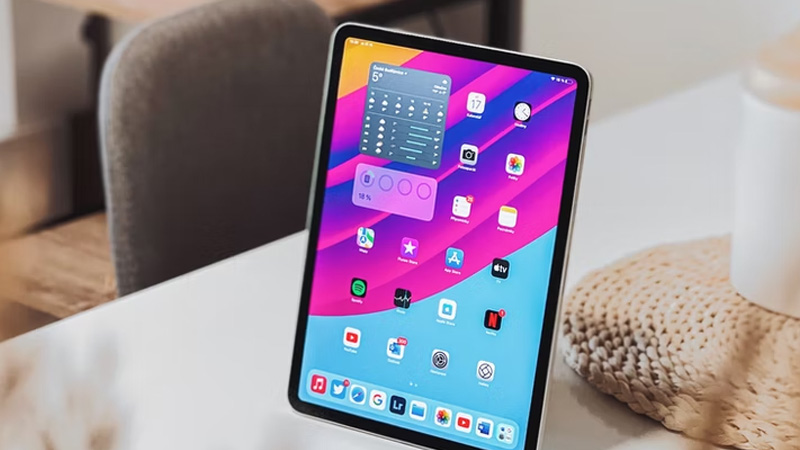
Step 1: Connect Your iPad To Your Computer
Connect your iPad to your computer with the iPad’s lightning cable. You may be prompted to enter your iPad passcode to continue, go on, and enter it.
Step 2: Open iTunes or Finder
Whichever of these two that your computer has, open it. Then located your iPad in iTunes and click on it. You’ll see an option to “Back Up Now”.
Step 3: Click On “Back Up Now”
Click on the “Back Up Now” button to back up your iPad to your computer. Once the backup is complete, you’ll receive a confirmation. After backing up your iPad, you can now go on to update your operating system to a newer version.
Step 4: Navigate Back To Your Device And Click “General” or “Settings”
Navigate back to your iPad option on iTunes and click on the “General” or “Settings” button.
Step 5: Click On Check For Update
Once you click this, iTunes will check for updates for your iPad and will go on to alert you if there are any updates for the iPad or else, your iPad is up to date.
Step 6: Click On “Download and Update”
If there are any updates for your iPad’s operating system, click on “Download and Update” to continue. This will download the newest version of iOS to your iPad and go on to update it by installing it automatically.